IMAP IDLE: instant push email notifications
IDLE is an IMAP protocol extension described in RFC 2177. It allows an IMAP client to indicate to the server that it is ready to accept real-time notifications about the changes (e.g. new message) in the currently selected folder.
This feature is not available for every IMAP server. You need to check if your IMAP server supports ImapExtension.Idle extension.
Mail.dll .NET IMAP library supports IDLE command.
There are two Imap class methods, that allow client to receive notifications:
- Idle() – starts accepting real-time notifications. The method hangs until the new notification is received.
- StopIdle() – stops accepting real-time notifications. This method is thread-safe.
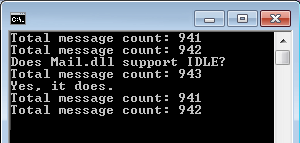
The following sample connects to an IMAP server and starts to receive notifications. When new message arrives (or an old message is deleted) it displays new message count, then searches IMAP server for unseen messages, downloads them, and displays subjects of all new messages.
using (Imap client = new Imap())
{
    client.ConnectSSL("imap.server.com");
    client.Login("user@server.com", "password");

    FolderStatus folderStatus = client.SelectInbox();
    Console.WriteLine("Total message count: {0}",
        folderStatus.MessageCount);

    while(true)
    {
        FolderStatus currentStatus = client.Idle();
        Console.WriteLine("Total message count: {0}",
                currentStatus.MessageCount);
        foreach(long uid in client.Search(Flag.Unseen))
        {
            IMail email = new MailBuilder().CreateFromEml(
                client.GetHeadersByUID(uid));
            Console.WriteLine(email.Subject);
        }
    }
    client.Close();
}
' VB.NET code

Using client As New Imap()
	client.ConnectSSL("imap.server.com")
	client.Login("user@server.com", "password")

	Dim folderStatus As FolderStatus = client.SelectInbox()
	Console.WriteLine("Total message count: {0}",_
		folderStatus.MessageCount)

	While True
		Dim currentStatus As FolderStatus = client.Idle()
		Console.WriteLine("Total message count: {0}",_
			currentStatus.MessageCount)
		For Each uid As Long In client.Search(Flag.Unseen)
			Dim email As IMail = New MailBuilder()_
 				.CreateFromEml(client.GetHeadersByUID(uid))
			Console.WriteLine(email.Subject)
		Next
	End While
	client.Close()
End Using
Stop IDLE gracefully
In this next sample we’ll handle stop gracefully. As you can see StopIdle method is thread safe. This means that it can be used from any other thread (for example UI thread).
// C# code

using (Imap client = new Imap())
{
    client.ConnectSSL("imap.server.com");
    client.Login("user@server.com", "password");

    FolderStatus folderStatus = client.SelectInbox();
    Console.WriteLine("Total message count: {0}",
        currentStatus.MessageCount);

    bool stop = false;
    // We start a new thread to handle user input, enter = stop idle
    new Thread(() =>
	{
		Console.ReadLine();
		client.StopIdle();
		stop = true;
	}).Start();

    while(stop == false)
    {
        FolderStatus currentStatus = client.Idle();
        if (stop == true)
            break;

        Console.WriteLine("Total message count: {0}",
            currentStatus.MessageCount);

        foreach(long uid in client.Search(Flag.Unseen))
        {
            IMail email = new MailBuilder().CreateFromEml(
                client.GetHeadersByUID(uid));
            Console.WriteLine(email.Subject);
        }
    }
    client.Close();
}
' VB.NET code

Using client As New Imap()
	client.ConnectSSL("imap.server.com")
	client.Login("user@server.com", "password")

	Dim folderStatus As FolderStatus = client.SelectInbox()
	Console.WriteLine("Total message count: {0}",_
		currentStatus.MessageCount)

	Dim [stop] As Boolean = False
	' We start a new thread to handle user input, enter = stop idle
	New Thread(Function() Do
		Console.ReadLine()
		client.StopIdle()
		[stop] = True
	End Function).Start()

	While [stop] = False
		Dim currentStatus As FolderStatus = client.Idle()
		If [stop] = True Then
			Exit While
		End If

		Console.WriteLine("Total message count: {0}",_
			currentStatus.MessageCount)

		For Each uid As Long In client.Search(Flag.Unseen)
			Dim email As IMail = New MailBuilder()_
				.CreateFromEml(client.GetHeadersByUID(uid))
			Console.WriteLine(email.Subject)
		Next
	End While
	client.Close()
End Using
Drawbacks
IDLE has some drawbacks:
- It requires constant server connection.
-
IDLE command leaves TCP/IP connection unused for a long time, and although IDLE is reissued/refreshed every 10 minutes (RFC requirement is 29 minutes, but this is much to long), some routers may assume the connection is dead, because of too long period of inactivity.
Shortening the timeout using Imap.Idle(TimeSpan) overload usually solves this issue. Don’t be afraid of shortening the timeout value as reissuing IDLE command takes less that a hundred bytes of data.
January 7th, 2016 at 23:27
Is there a command where client.SelectInbox() can be replaced so that you can get the all mail folder instead? I figure that would be better so that only one IDLE connection is required for an account. Is there a way to find out which email goes with which folder in this case?
January 8th, 2016 at 19:52
@Scott
You can use any folder name:
client.Select("All Mail")In case of Gmail you may want to use CommonFolders class to get the All Mail folder name:
http://www.limilabs.com/blog/localized-gmail-imap-folders
> Is there a way to find out which email goes with which folder in this case?
In case of Gmail you can get all labels for specified message:
http://www.limilabs.com/blog/get-gmail-labels-for-specified-messages
January 15th, 2016 at 12:44
[…] use push email […]
March 15th, 2016 at 08:13
hello
sir,when i access email through email.idle notification,i want also mark the email to read
can you tell me how can i do this
March 15th, 2016 at 12:49
@Saqib,
If you download the message (GetMessageByUID) usually server marks it as seen automatically.
You can also use MarkMessageSeenByUID method:
http://www.limilabs.com/blog/mark-emails-as-read-with-imap
Take a look at all Mail.dll samples, most likely you’ll find the code you need there.
May 10th, 2016 at 10:14
[…] use push email […]
December 5th, 2017 at 01:15
I am using idle with Gmail and it works flawlessly for a couple of hours. Then I get “Unhandled exception: Tried to read a line. No data received.” Then it quits and I have to manually restart the program.
December 5th, 2017 at 13:07
@Howard,
You can find more details on “Tried to read a line…” error here:
http://www.limilabs.com/blog/tried-to-read-a-line-only-received
Basically, it means that either server disconnected or you have had a small connection problem – which is understandable if you maintain a connection for several hours.
If you receive such error the only thing you can do is to simply reconnect.
December 20th, 2017 at 06:30
Hi,
For getting new emails, I am just searching mails with UID greater than last sync everytime I get response from IMAP.IDLE. But How can I use IMAP IDLE to get the specific updates like message read/unread changes, deleted emails?
Regards,
Ajay
December 21st, 2017 at 10:31
@Ajay,
1. Not all servers report such changes.
2. After IDLE returns you can perform any operation, including Flag.Unseen search. You can also download most important email information for 100 most recent emails: http://www.limilabs.com/blog/get-email-information-from-imap-fast
3. You can also examine Imap.CurrentFolder property. It contains properties such as Expunge, Recent, MessageCount